Create a Support Ticket
Support for IBM Power for Google Cloud is provided by Google Cloud Customer Care as Third-Party Technology Support using the Collaborative support model.
To learn more about the Third-Party Technology Support provided with Enhanced and Premium support from Google Cloud Customer Care see Getting Support for Google Cloud.
Open a support case for IBM Power for Google Cloud
Requirements:
- The user must have the appropriate Google Cloud IAM Roles for Enhanced or Premium Support to open a support request.
- The ticket must include the Account ID for optimal ticket resolution. If the ticket is specific to a single Cloud Instance, include the Cloud Instance ID for the fastest resolution. See locate your Account ID and locate your Cloud Instance ID for details.
To open a Google Cloud support case, follow the instructions in for Creating cases in Google Cloud Support portal.
When selecting the issue category, expand Partner Support, expand IBM Power Systems for Google Cloud, and select the most appropriate sub topic for your issue.
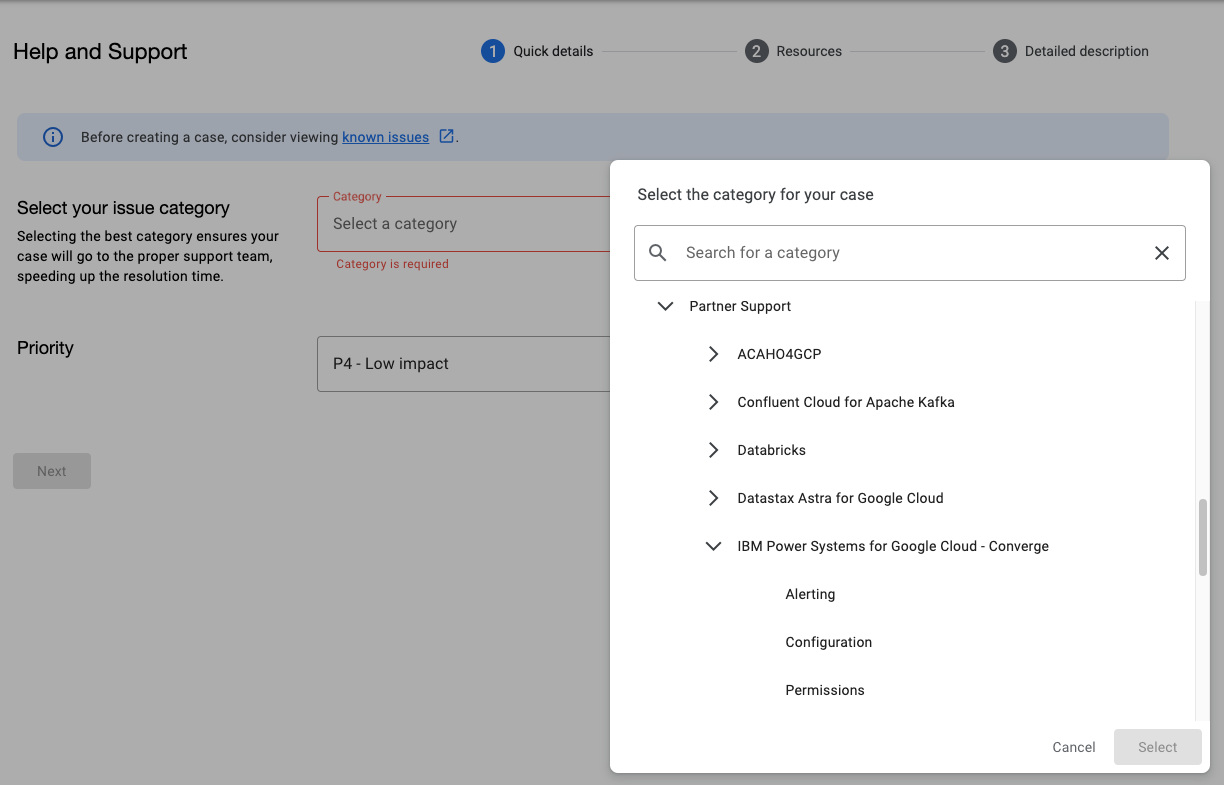
Google engages Converge on behalf of the client as needed for investigating possible issues with the IBM Power for Google Cloud infrastructure.
If the issue is determined to originate from the operating system or third‑party software, please contact the corresponding vendor’s support team for assistance. For example, for AIX or IBM i issues, see IBM Support.
Open a support case with IBM for AIX and IBM i support
- Support is included for versions of the AIX operating system that are currently in standard support.
- Support is available for versions of the AIX operating system that are in Extended Support. To inquire about pricing for Extended Support pricing or assistance with upgrading to a supported version, please do not hesitate to contact our team at ip4g@pellera.com. For more information, see AIX support lifecycle information.
To directly engage IBM for AIX or IBM i operating system support, go to the IBM Support portal using your IBM ID. If you do not have an IBM ID, you must register to create an IBM ID.
- Click Open a case
- In the Case Title field, enter a description of the issue.
- In the Product Manufacturer field, select IBM
- In the Product field, select AIX or IBM i
- AIX
- Retrieve the system’s Serial Number, Model, and type. In this example, NNNNNNN is the serial number, 9009 is the Model, and 22A is the type.
root# prtconf | head -2 System Model: IBM,9009-22A Machine Serial Number: NNNNNNN - In the Machine Serial Number field, start typing the serial number until a dropdown appears with the option, “I don’t see my serial number. I will enter it manually.” Then select that option.
- Fill in fields as needed.
- In the In the Account field, select the first account in the dropdown.
- In the LPAR Configuration field, select VIOS Client.
- Retrieve the system’s Serial Number, Model, and type. In this example, NNNNNNN is the serial number, 9009 is the Model, and 22A is the type.
- IBM i
- Retrieve the system’s Serial Number, Model, and type. In this example, 21-8FD0W is the serial number, 8286 is the Model, and 42A is the type.
- CALL QLZARCAPI
- Then, on the status line, press F1, then press F10.
- Remove the dash from the serial number.
- On the Type-Model line, the Model is the first four digits before the dash, and Type will be the three digits after the dash.
- Start typing the serial number until a dropdown appears with the option, “I don’t see my serial number. I will enter it manually.” Then select that option.
- Fill in fields as needed
- In the In the Account field, select the first account in the dropdown.
- Retrieve the system’s Serial Number, Model, and type. In this example, 21-8FD0W is the serial number, 8286 is the Model, and 42A is the type.
- AIX
- Complete all of the required information and click Submit Case.
Locate your Account ID
You can find the Account ID in the IBM Power for Google Cloud Web Console or pcloud cli. In the examples below, the Account ID is E-01DF-1DFC-6D14-4701. Using the Web Console, click your name > Accounts to see your Account ID.
Web Console

Using the pcloud CLI.
$ pcloud config list
accountID: E-1A23-4B56-7C89-1234
cloudID: vy6tjjaeucosydnsm5pfopuyioxedqy1
cloudName: my-cloud
region: us-east4
Locate your Cloud Instance ID
Your IBM Power for Google Cloud Account may have multiple Cloud Instances. If you are using two regions, you will have two Cloud Instance ID’s, one for each region. In the example below, the Cloud Instance ID is 75a23c3671c1sjke85788b65552a74ec. To locate the Cloud Instance ID, use the pcloud CLI. If needed, see the instructions for the pcloud CLI.
$ pcloud config list
accountID: E-1A23-4B56-7C89-1234
cloudID: vy6tjjaeucosydnsm5pfopuyioxedqy1
cloudName: my-cloud
region: us-east4